
Add Your First Website
Adding a website takes under a minute. Validator starts checking it right away.
You need an active subscription or free trial to add websites.
Add the website
- Go to the Dashboard.
- Enter your website's address in the Website URL field, for example https://example.com.
- Click Add site.
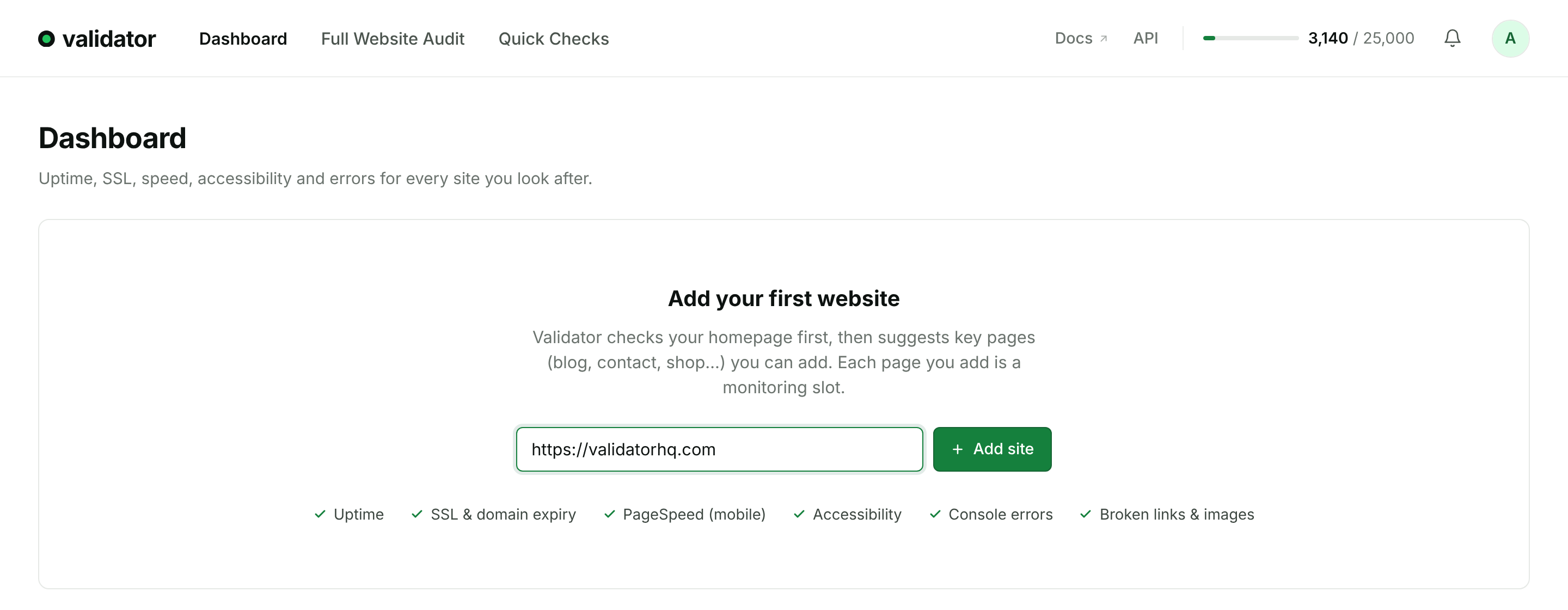
Validator opens the website's page and runs the first checks on the homepage, which becomes the primary page. This usually takes a minute or two, and you can keep using the app in the meantime.
Add more pages
Each website can have up to 10 pages. Each page you add is one monitoring slot and uses credits on every scheduled check. Before you add a page, the app shows about how many credits a month it will use. See Audit credits and monitoring slots.
- Open the website from the Dashboard.
- Under Suggested pages, add the key pages Validator found, such as the blog, contact page or shop. Click Show more to see the rest.
- To add a page that isn't suggested, enter its URL under Add a page and click Add page. It must be on the same domain.
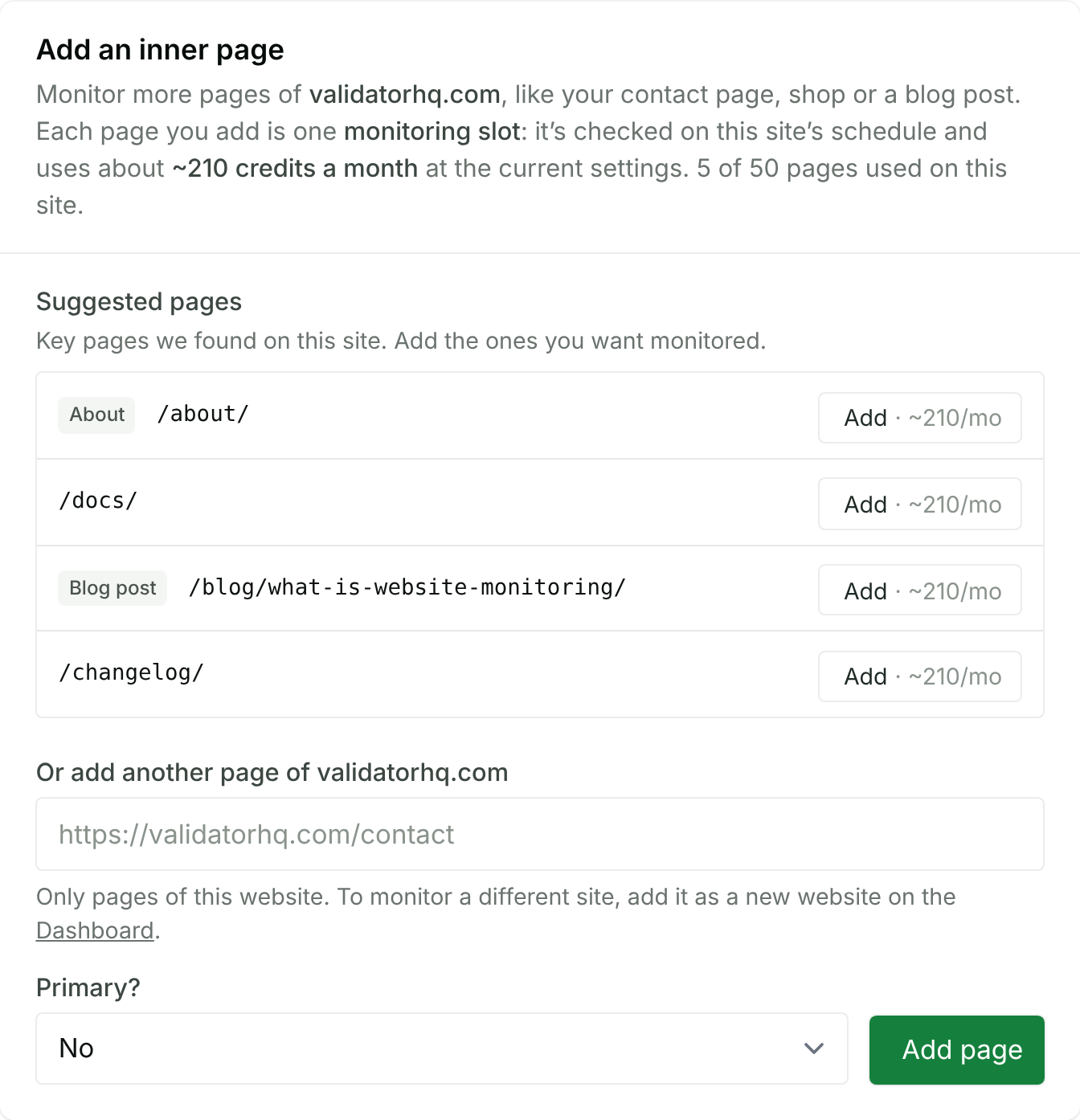
Other pages follow the primary page's schedule, but run at most every 6 hours for Page health and at most once a day for PageSpeed, Accessibility and Visual changes.
Choose how often checks run
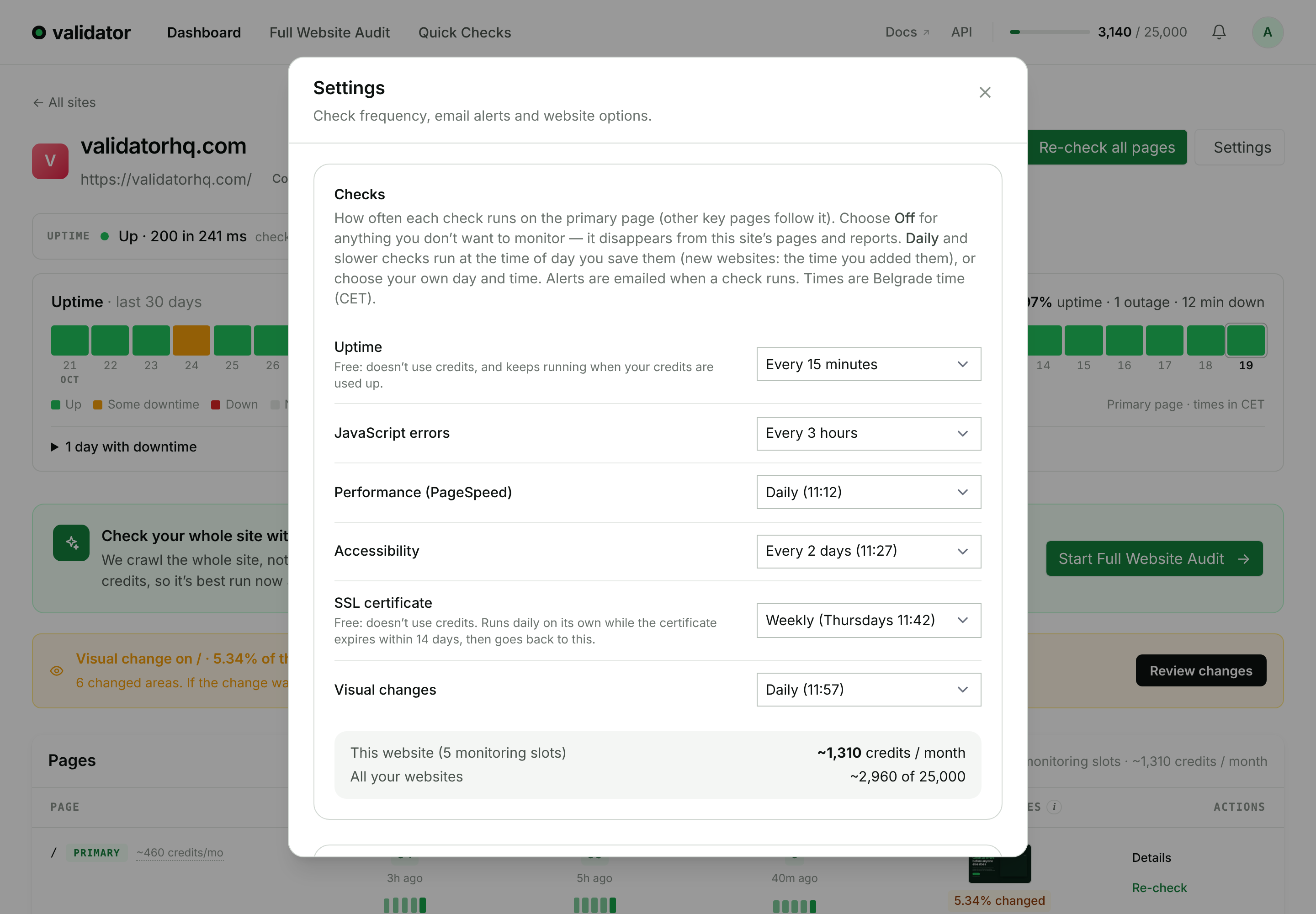
Click Settings on the website's page. Under Checks, pick how often each check runs, or choose Off to stop it for the whole website. The window shows how many credits a month this website and all your websites will use. All times are Belgrade time.
| Check | Default schedule |
|---|---|
| Uptime | Every 15 minutes |
| SSL certificate | Weekly (Monday), and daily once it expires within 14 days |
| Page health | Every 3 hours |
| PageSpeed | Daily |
| Accessibility | Every 2 days |
| Visual changes | Daily |
You can choose from every hour up to monthly. Uptime can also run every 15 or 30 minutes.
Settings also holds Email alerts (see Email alerts) and the Danger zone, where you can delete the website.
Turn checks off for one page
Every page except the primary one has its own settings in the pages table. Turn off the checks you don't need on that page. Turned-off checks don't run and use no credits. Uptime is always checked.
Your Dashboard
The Dashboard lists all your websites with their status, SSL, average PageSpeed and accessibility, Page health errors, pages and estimated credits per month.
- Click a tile at the top (All sites, Healthy, Needs attention, Down) to filter the list.
- Use search and Sort by to find a website.
- Click Re-check on a row to run every check on all pages of that website now. You see how many credits it will use before you confirm.
Remove a website or page
- Website: click the delete icon on its row on the Dashboard, or use Danger zone in its Settings, and confirm. This removes its pages, results and scheduled checks. It can't be undone.
- Page: click Delete on its row in the pages table. The primary page can't be deleted.